Uptime monitoring tells you when your website is down. Server monitoring tells you why — and often lets you catch the problem before the site goes down at all. In Monitorix, server monitoring is powered by a lightweight agent you install on your machine. This guide walks through what the agent does and how to add a server in a few minutes.
What is the Monitorix agent?
The agent is a small program that runs on your Linux server and reports its health back to Monitorix. It collects:
- CPU usage and load average, memory and swap, disk usage and I/O, network traffic, and process counts;
- the list of system services (name, running state, and per-service CPU) so you can pick which to monitor;
- the detected firewall type (CSF, UFW, firewalld, or iptables) and, on request, its active rule listing;
- on request, a snapshot of your web server's status page (Apache mod_status or nginx stub_status).
Importantly, the agent reads all of this locally and sends it to Monitorix — Monitorix never has to connect back into your server, so you don't open any inbound ports for it.
How do I add a server?
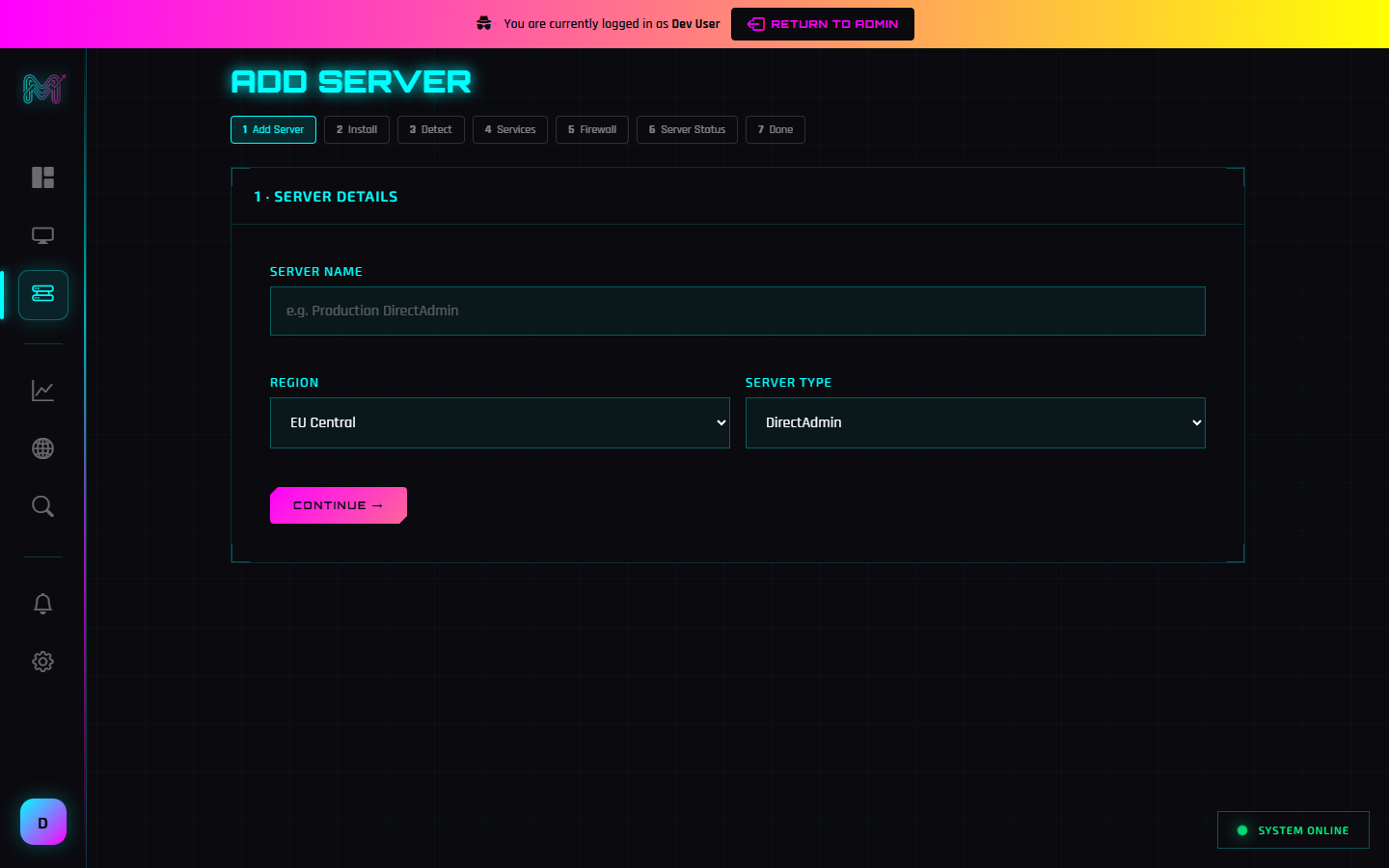
Adding a server is a guided, step-by-step flow. You don't need to hand-edit config files.
- Add the server — give it a name, pick a region and server type.
- Run one command — copy the generated install command and run it on your server as root. It installs the agent and registers it automatically.
- Automatic detection — the agent reports back its firewall, public IP, and any server-status endpoint, and the wizard shows you what it found.
- Choose services to monitor — enable monitoring (and optional auto-restart) for the services that matter.
- Configure the firewall — confirm the detected firewall and, if you like, manage its rules from Monitorix.
- Health check & finish — a final check confirms everything is reporting, then drops you on the server's management page.
Is the agent safe to install?
Yes. You install the agent yourself, on servers you own or manage, and it runs with the privileges you grant it. Every sensitive action — restarting a service, changing a firewall rule, blocking an IP, or fetching the status page — happens only when you enable or request it from your dashboard. By default it simply observes and reports.
What does "smart auto-restart" do?
If you enable auto-restart for a service, Monitorix will restart it — but only when a problem is sustained: the service has been down for the number of minutes you set, or its CPU has been above your threshold for that long. A single failed check never triggers a restart, and a cooldown prevents restart loops. You stay in control of which services this applies to.
Monitoring the whole fleet
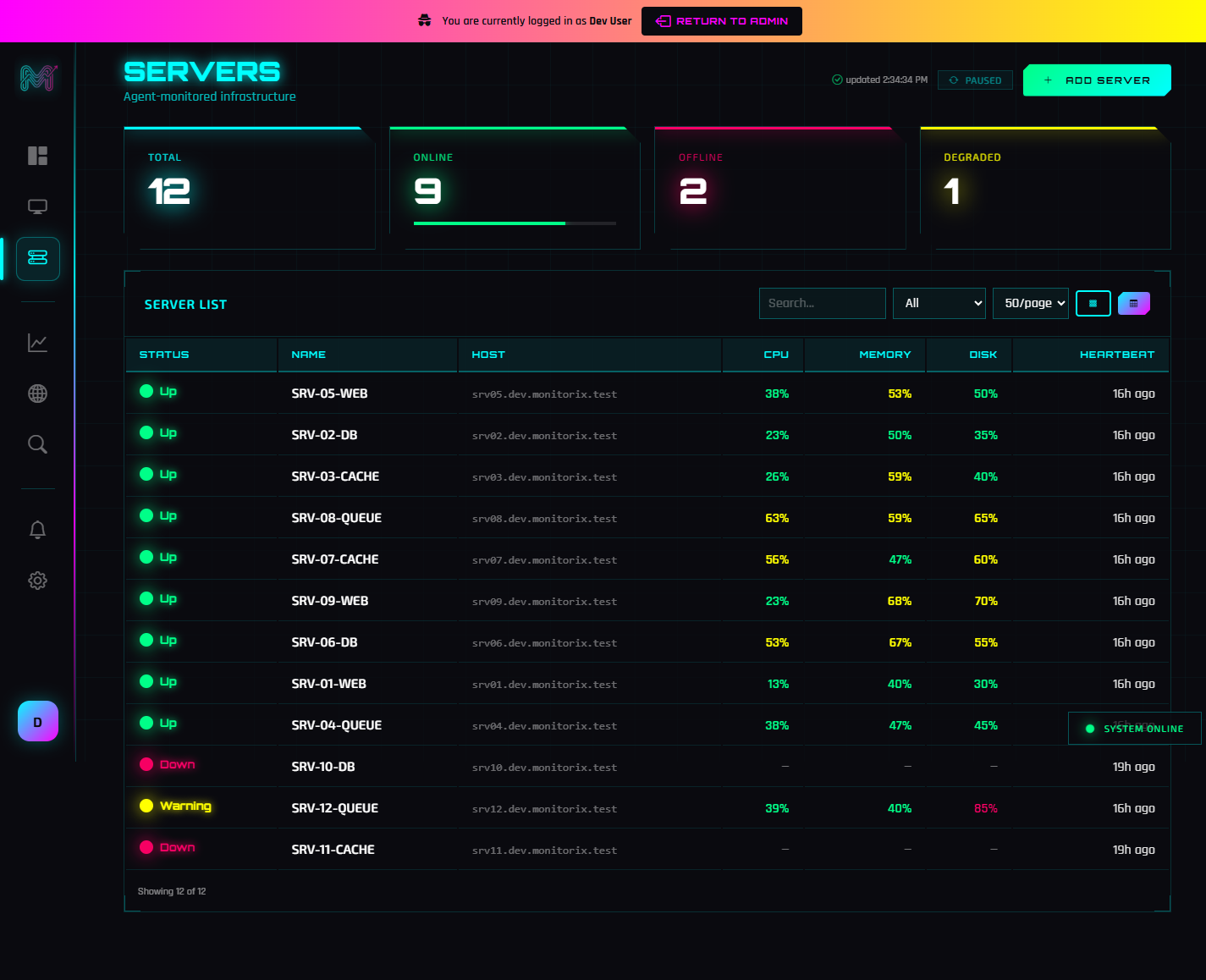
Once your agents are installed, every server shows up together with live CPU, memory, and disk, so you can spot the one that's about to run out of headroom at a glance.
New to Monitorix? Start with What is Monitorix? for the big picture, then come back here to add your first server.
Frequently Asked Questions
What is the Monitorix agent?
Is the Monitorix agent safe to install?
How do I install the agent?
Does the agent open any inbound ports?
Related Posts